
Only users with admin rights are able to create email accounts. Creating a new email account is done via webmail.
- Log in to webmail i.e. https://webmail.yourdomain.com with an email administrator account.
- On the top menu bar, click Domain Settings (gear with globe icon).

- On the navigation pane click on Accounts.
- When the Accounts section loads, you will see a variety of tabs – Users, Aliases, Administrators and User Groups. To create a new email account ensure the Users tab is selected.
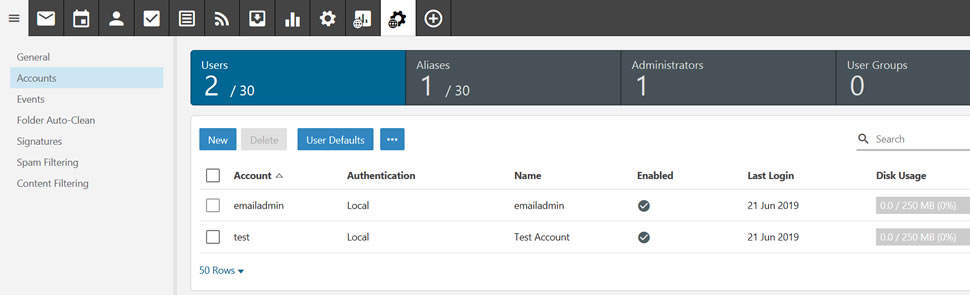
- Click on New; the New User modal will appear.
- Enter in the following details:
- Username: enter the email account name i.e. akin.okoronkwo. Do not enter in the full email address i.e. akin.okoronkwo@yourdomain.com.
- Password: enter a password for the account. The password requirements are displayed and will change from Red to Green when the requirements have been met.
- Confirm Password: re-enter the password.
- Click Save.
- The User Details section will now load. Here you can change the default settings for the user or leave as is.