Notice: Function _load_textdomain_just_in_time was called incorrectly. Translation loading for the atk-altokom domain was triggered too early. This is usually an indicator for some code in the plugin or theme running too early. Translations should be loaded at the init action or later. Please see Debugging in WordPress for more information. (This message was added in version 6.7.0.) in /home/alto/staging.altokom.com/wp-includes/functions.php on line 6170

Warning: Cannot modify header information - headers already sent by (output started at /home/alto/staging.altokom.com/wp-includes/functions.php:6170) in /home/alto/staging.altokom.com/wp-includes/feed-rss2.php on line 8
Email Administrator Articles - Knowledge Base- Altokom https://staging.altokom.com/kb-category/email-administrator/ Helping Businesses Leverage Technology Tue, 30 Jan 2024 12:38:13 +0000 en-GB hourly 1 https://wordpress.org/?v=7.0.2 https://staging.altokom.com/wp-content/uploads/2017/02/cropped-altokom-site-identity-32x32.png Email Administrator Articles - Knowledge Base- Altokom https://staging.altokom.com/kb-category/email-administrator/ 32 32 How to Setup Email Account on Android Device https://staging.altokom.com/resources/knowledge-base/how-to-setup-email-account-on-android-device/ Mon, 29 Jan 2024 10:00:57 +0000 https://staging.altokom.com/?post_type=kb&p=646 To set up an email account on your Android device, follow the steps below: 1. Open the Gmail app 2. Click the three overlapping bars on the top-left of the screen 3. On the menu bar, click on Settings. 4. Click Add Account. 5. On the list of options provided, select Google. 6. You have...

The post How to Setup Email Account on Android Device appeared first on Altokom.

]]>
To set up an email account on your Android device, follow the steps below:
1. Open the Gmail app

2. Click the three overlapping bars on the top-left of the screen

3. On the menu bar, click on Settings.
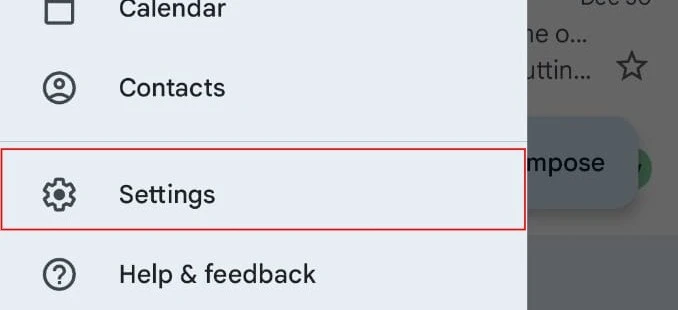
4. Click Add Account.

5. On the list of options provided, select Google.

6. You have to enter your PIN/password to proceed.

7. Click Create Account (1)

8. Two options: For my personal use (2) Or For work or my business (3). Choose which one suits your purpose and click Next (4).

9. Fill in the First name (1) and Last name (2) fields and click Next (3) (Last name is optional).
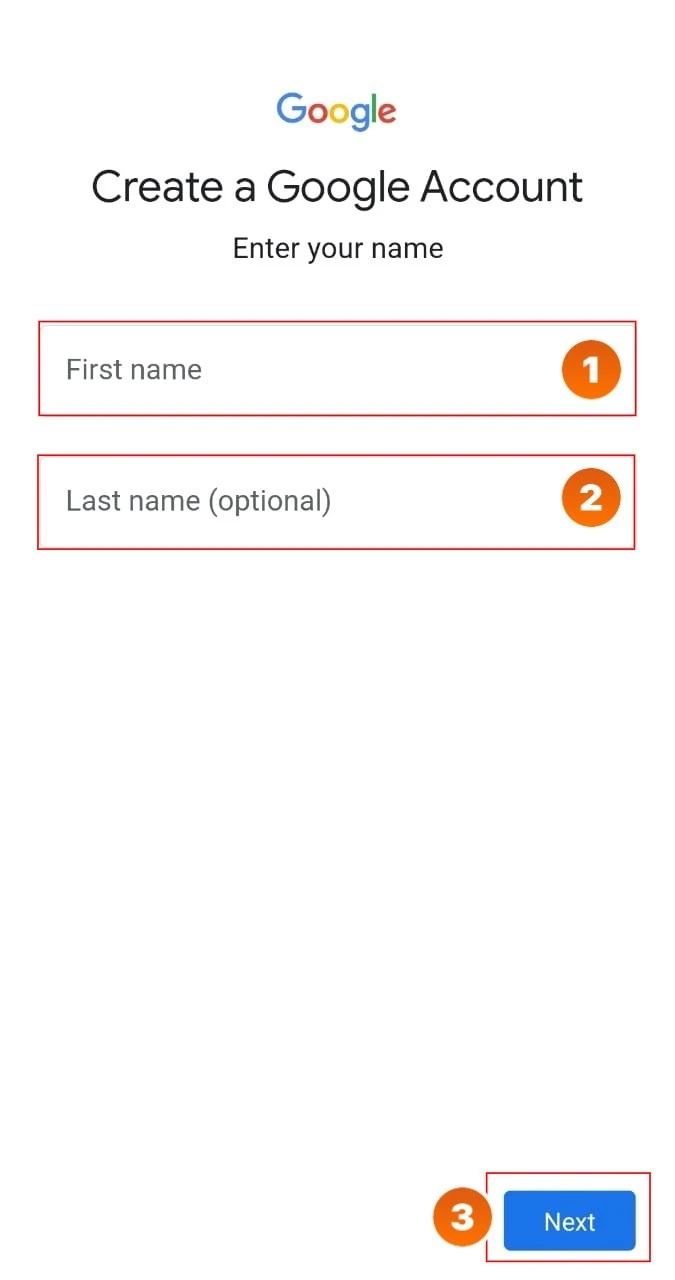
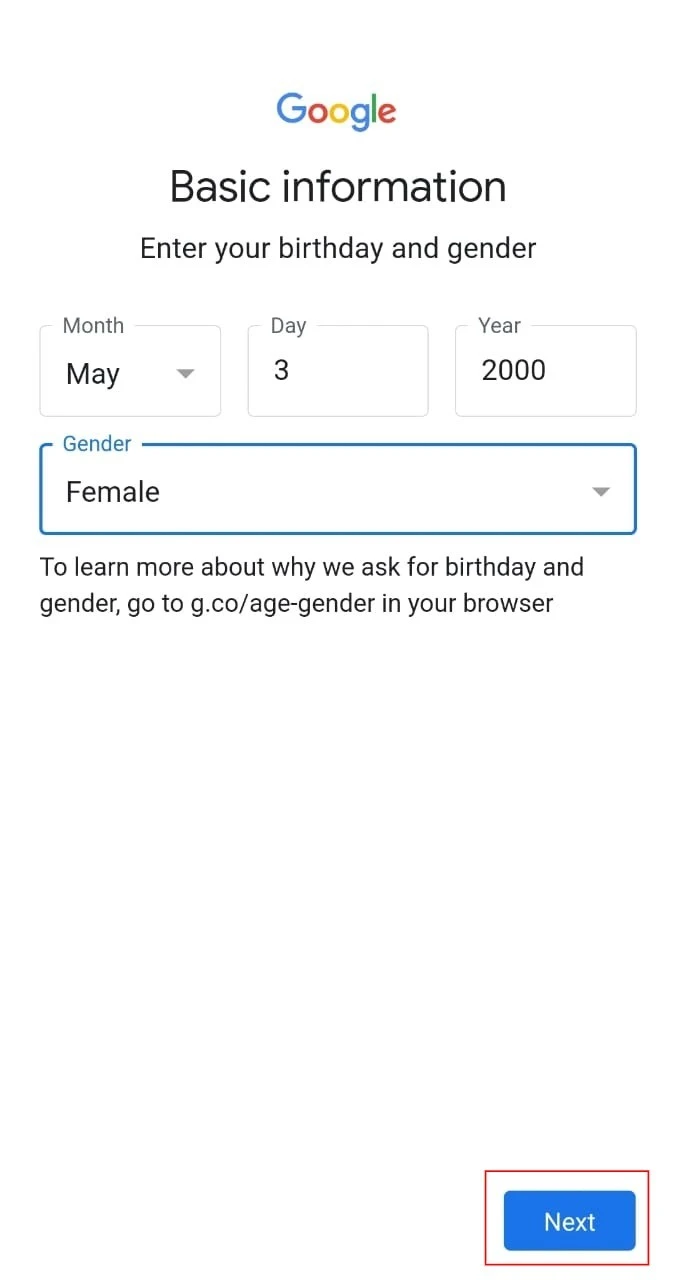
10. Enter your birthday and Gender, then click Next.

WhatsApp Image 2024-01-01 at 13.04.03 (2).jpeg

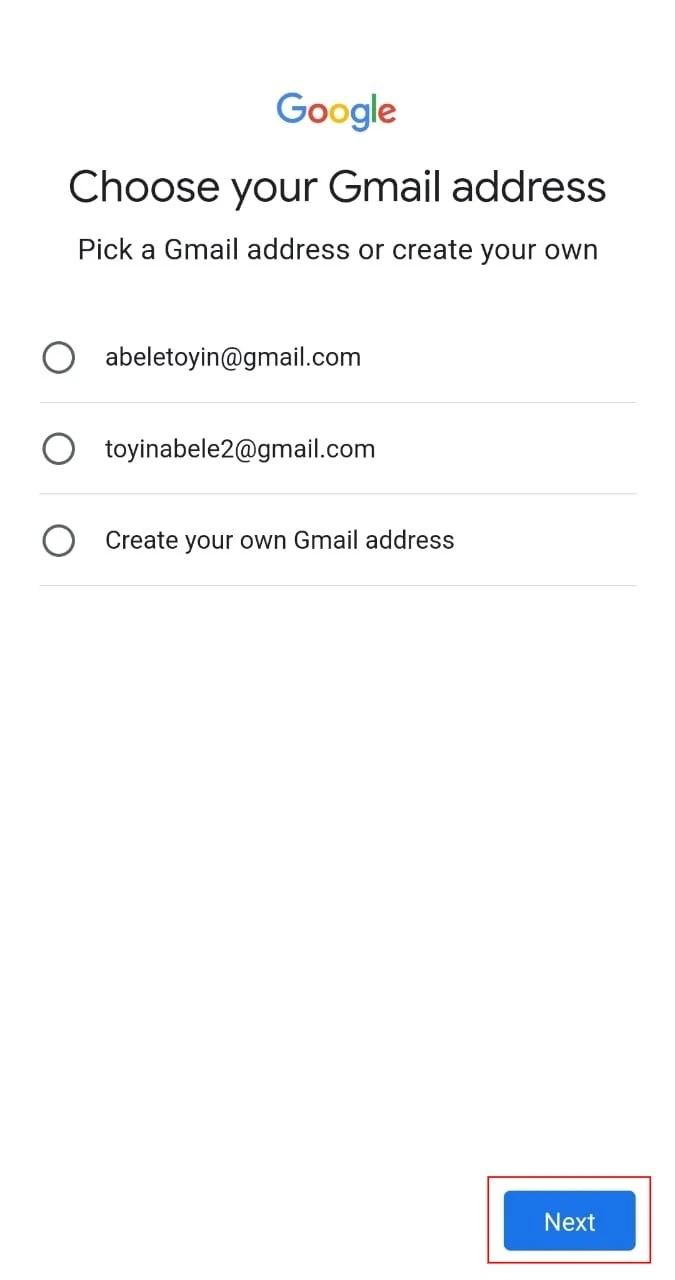
11. You can either pick one of the suggested email addresses or create yours. Then click Next.
12. Click Yes, I’m in on the bottom-right of the screen.

13. A page will pop up to review your account info. Click Next

14. Click I agree on the next page that appears
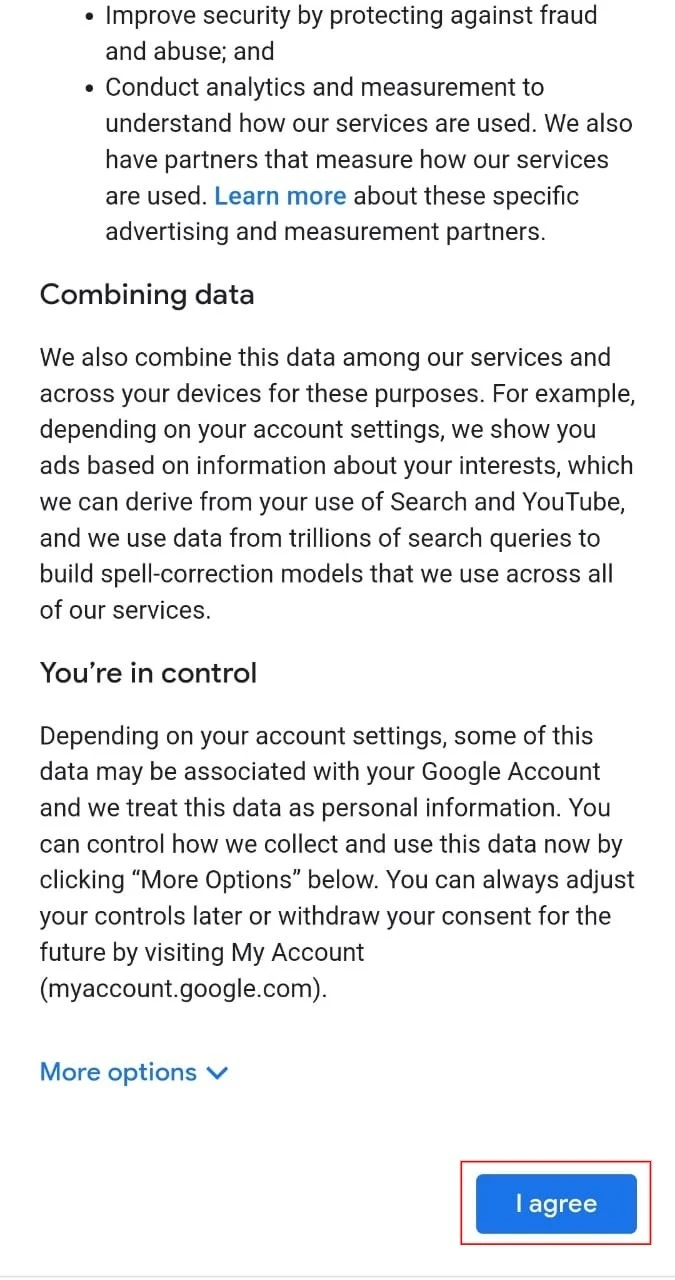
Your email account is now set up.

The post How to Setup Email Account on Android Device appeared first on Altokom.

]]>
How to Change a User’s Password https://staging.altokom.com/resources/knowledge-base/how-to-change-a-users-password/ Sat, 29 Jun 2019 14:23:20 +0000 https://staging.altokom.com/?post_type=kb&p=526 Only users with admin rights are able to change a user’s password. Changing a user’s password is done via webmail. Log in to webmail i.e. https://webmail.yourdomain.com with an email administrator account. On the top menu bar, click Domain Settings (gear with globe icon). On the navigation pane click on Accounts. Double-click on the user account...

The post How to Change a User’s Password appeared first on Altokom.

]]>
Only users with admin rights are able to change a user’s password. Changing a user’s password is done via webmail.

  1. Log in to webmail i.e. https://webmail.yourdomain.com with an email administrator account.
  2. On the top menu bar, click Domain Settings (gear with globe icon).
  3. On the navigation pane click on Accounts.
  4. Double-click on the user account that you want to change the password.
  5. Click on the ellipsis ‘‘ button at the top of the content pane.
  6. Click Change Password; the Password modal will appear.
  7. Enter in the following details:
    • Password: enter a password for the account. The password requirements are displayed and will change from Red to Green when the requirements have been met.
    • Confirm Password: re-enter the password.
  8. Click Save.

The post How to Change a User’s Password appeared first on Altokom.

]]>
How to Setup a Domain-wide Signature in Webmail https://staging.altokom.com/resources/knowledge-base/how-to-setup-a-domain-wide-signature-in-webmail/ Tue, 18 Jun 2019 19:16:14 +0000 https://staging.altokom.com/?post_type=kb&p=434 Only users with admin rights are able to setup a domain-wide signature in webmail. Log in to webmail (https://webmail.yourdomain.com) with  an email administrative account. On the top menu bar, click Domain Settings (gears with globe icon) In the navigation pane on the left click on Signatures. In the content pane click + New Signature. In...

The post How to Setup a Domain-wide Signature in Webmail appeared first on Altokom.

]]>
Only users with admin rights are able to setup a domain-wide signature in webmail.

  1. Log in to webmail (https://webmail.yourdomain.com) with  an email administrative account.
  2. On the top menu bar, click Domain Settings (gears with globe icon)
  3. In the navigation pane on the left click on Signatures.
  4. In the content pane click + New Signature.
  5. In the Name field, type in the name of the signature.
  6. In the text box type in the content of the signature.
  7. Click Save.
  8. The new signature will appear in the Signatures pane. You can edit or delete the signature by clicking on it.
  9. In the Mapped Field pane click on your domain name
  10. Select the signature you just setup
  11. Switch off Allow users to override this mapping. This will make the signature a domain-wide signature.
  12. Click Save.

The post How to Setup a Domain-wide Signature in Webmail appeared first on Altokom.

]]>
How to Create a New Email Account https://staging.altokom.com/resources/knowledge-base/create-new-email-account/ Sat, 02 Mar 2019 23:07:20 +0000 https://staging.altokom.com/?post_type=kb&p=266 Only users with admin rights are able to create email accounts. Creating a new email account is done via webmail. Log in to webmail i.e. https://webmail.yourdomain.com with an email administrator account. On the top menu bar, click Domain Settings (gear with globe icon). On the navigation pane click on Accounts. When the Accounts section loads,...

The post How to Create a New Email Account appeared first on Altokom.

]]>
Only users with admin rights are able to create email accounts. Creating a new email account is done via webmail.

  1. Log in to webmail i.e. https://webmail.yourdomain.com with an email administrator account.
  2. On the top menu bar, click Domain Settings (gear with globe icon).
  3. On the navigation pane click on Accounts.
  4. When the Accounts section loads, you will see a variety of tabs – Users, Aliases, Administrators and User Groups. To create a new email account ensure the Users tab is selected.
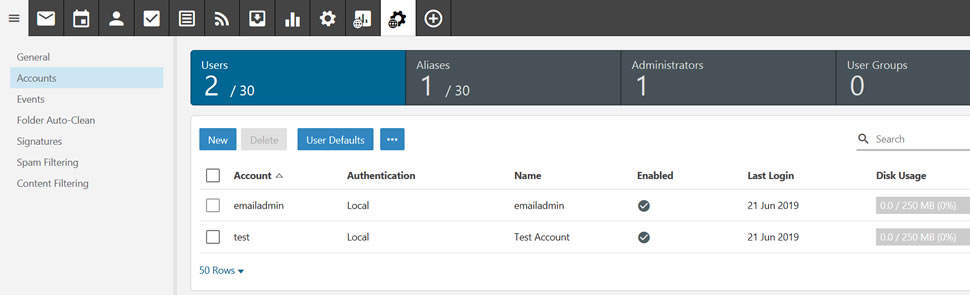
  5. Click on New; the New User modal will appear.
  6. Enter in the following details:
    • Username: enter the email account name i.e. akin.okoronkwo. Do not enter in the full email address i.e. akin.okoronkwo@yourdomain.com.
    • Password: enter a password for the account. The password requirements are displayed and will change from Red to Green when the requirements have been met.
    • Confirm Password: re-enter the password.
  7. Click Save.
  8. The User Details section will now load. Here you can change the default settings for the user or leave as is.

The post How to Create a New Email Account appeared first on Altokom.

]]>